Add Items
Step 1 : Go to inventory module , click on items, then add item.
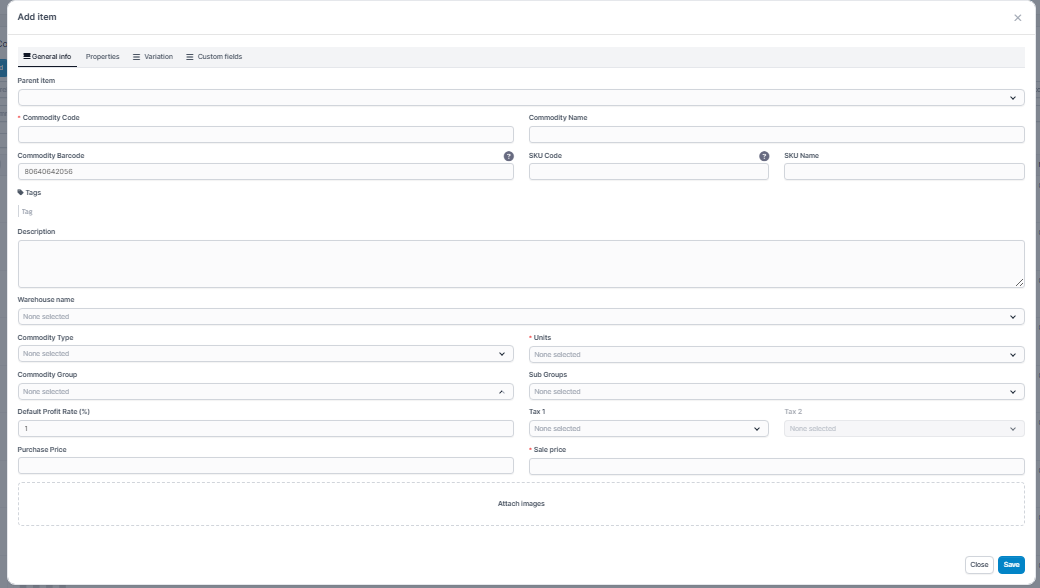
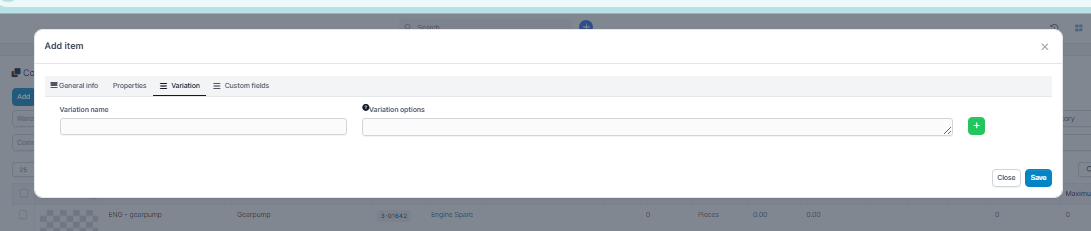
Step 2 : In add item page , add all the details of the items, then go to variations and add the variations if available, then click on save
Commodity code - Write the first 3 letters of Commodity group, for example Engine spares as ENG then add the Part name or item name . ( example- ENG- Pushrod valve ,then add same name ( pushrod valve ) in commodity name )
Commodity name - item name or Part name as above mentioned. (pushrod valve )
Description - add description if any
Warehouse - Select the warehouse from the drop down,
Commodity type - Select the commodity type from dropdown if any .( old, new or refurbished- as optional)
Units - Select the units as pieces or sets
Commodity group - Select the commodity group of the item it belongs to from the dropdown.
Default profit rate - add the number as 1% for sample
Tax 1 and Tax 2 - Add the tax rates according to you
Purchase price - Add the price of your item
Sales price - by adding the purchase price , the sales price will get change according to the default profit rate automatically.
Before saving ,
if you have any variations, add the variations in variation tab. if dont have any variations, then click on save .
1.{caution : if you have variations, you must save in starting time only,you cant modify variations after saving it. so either you must do in starting or you must delete the one in whichyou have forgot to add variation and save in new.}
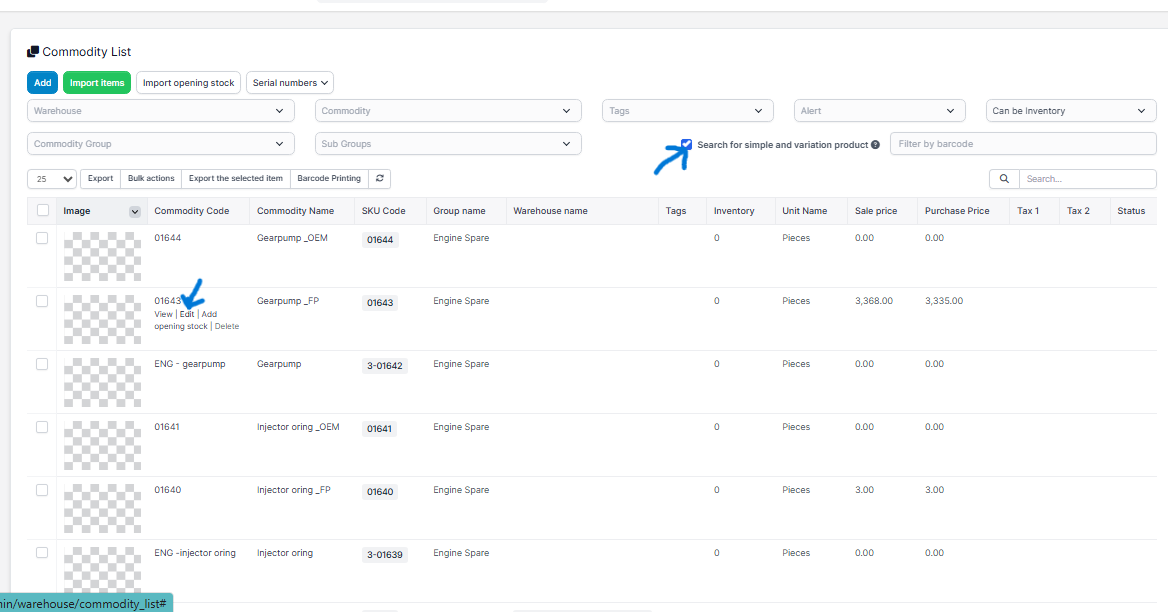
2. { if you want to save variations price, then you have to click search for simple & variation product, -then it will show you variable items- and you can edit and place the price & qty.
if you directly save the price in main product, then it will show the same price for all variables of that product, so for main prduct you can place purchase price as O & then you can add prices in variations if you have }
- To add item details
- To add variations
:To add the price for variations,
click on the search for simple and variation products, all the created variations will be visible. Now you can edit to add the prices.
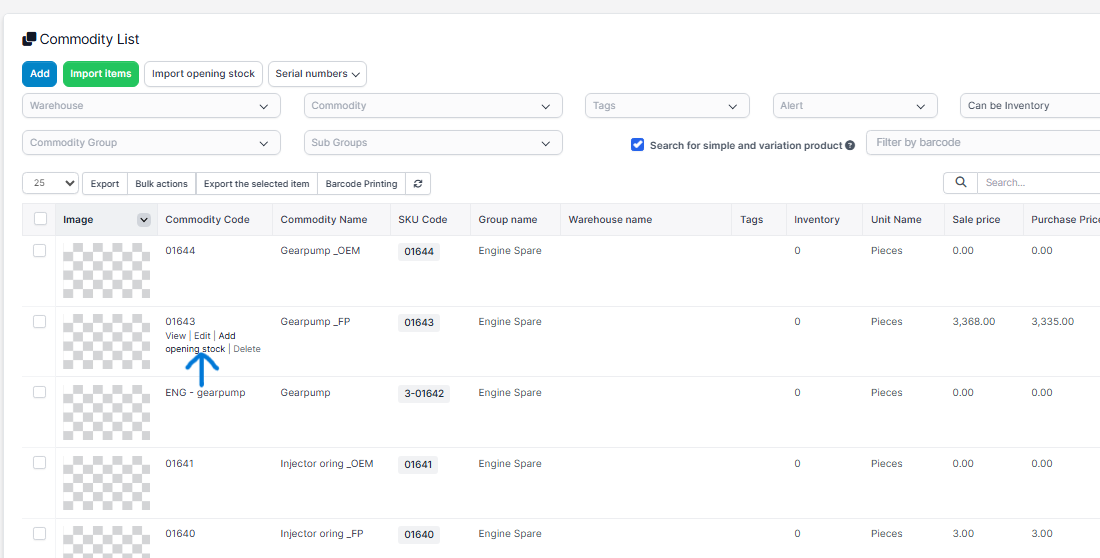
To add the quantity of variations
, hover the item and you will see the add opening stock , click on that and select the warehouse name and add the quantity.
IF YOU ARE ADDING ANY NEW QUANTITY.( THE PRODUCT WHICH IS ALREADY THERE IN STOCK & IF ANY NEW QTY RECIEVED.)
GO TO inventory section - Inventory Receiving Voucher
The Inventory Receiving Voucher is used for:
-
Recording goods received from vendors or suppliers
-
Updating stock levels when items arrive at the warehouse
-
Verifying received quantities against purchase orders
-
Tracking inbound inventory with date, warehouse, and item details
-
Maintaining accurate inventory and audit records
Go to Inventory receiving voucher, and click on add docket , then add the item, warehouse, quantity, price etc, and click on black tick mark and save it .
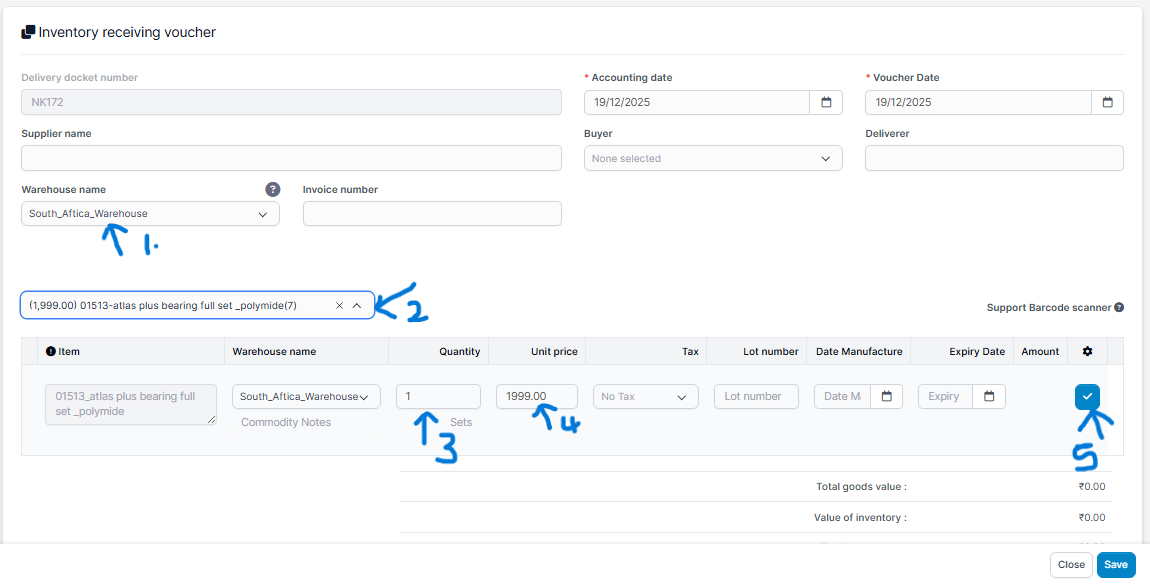
Step1 : Select the warehouse name
Step 2: Select the item
Step 3: Add the quantity
Step 4: Add the price
Step 5: Click on the blue tick to add the item
Step 6: Click on the save
HOW TO SEE MAIN PRODUCT & VARIABLE PRODUCT
If product is visible by product name, then it is main product of the variable item.
if the product is visible by part no. then it is the variable product.
always remember, you must place the main product value as zero, then you can add variable product value..